Create a Project Page for Your Repos Easily With Jekyll and GitHub Pages
I know, I know… I should be writing about creating a full fledge super complex blog with Jekyll + GitHub Pages at no cost with your own domain and all. But no, there’s tons of articles out there and repos that can help you out with such task.
In this case, I’m going to show you how to create a project page using the ever popular Jekyll and GitHub Pages so your projects can have a face, and of course, to show it of to your friends out there.
So, without further ado, we should get to the point already, shall we?
Building our site with Jekyll
Let’s say that you have a project called chuck-says that acts like a fortune cookie + cowsay whenever you call it in the command line.
To provide our repository with a project page, we can use Jekyll, which is a tool made in Ruby that can use a combination of Markdown and Font Matter to create static websites and blogs. It’s a very easy to use site generator that can aid us with what we want to accomplish in this case. We can install it using the gem command:
$ gem install jekyll |
Now, let’s go to the folder in which our project is located. There, we can create our project’s page on the folder docs. There’s no need to create the folder as Jekyll can do this for us:
$ jekyll new docs |
After that we can see our page structure, which can be something like this:$ tree docs/
.
├── 404.html
├── about.md
├── _config.yml
├── Gemfile
├── Gemfile.lock
├── index.md
└── _posts
└── 2019-06-09-welcome-to-jekyll.markdown
1 directory, 7 files
Here’s a brief description of each one of them, the bold one’s, such as config.yml and index.md are the ones that we’re actually going to use!
| File | Description |
|---|---|
| 404.html | Not Found template |
| about.md | A short about page |
| config.yml | Configuration file |
| Gemfile | Dependency gem requirements and configuration |
| Gemfile.lock | Pinned gem versions |
| index.md | Front Page (And the one we’ll use!) |
| posts/ | Folder containing blog posts (we won’t use them!) |
As we’re not trying to create a blog (we can see how to do it on a another post), we can remove about.md and the posts/ folder.
Before we move on, there’s something important we need to do first! We have to add the github-pages gem, provided by GitHub, in order to have access to themes and to ensure maximum compatibility to make our site deploy on GitHub Pages. Let’s open up Gemfile and add the gem as follows:
|
Now, let’s update our packages:
# Remember to to this inside the /docs folder |
To ensure that we can run our page, let’s serve it locally with the serve or s subcommand:
$ bundle exec jekyll serve |
There you go! You can now visit http://127.0.0.1:4000/ to see your Jekyll web page up and running!
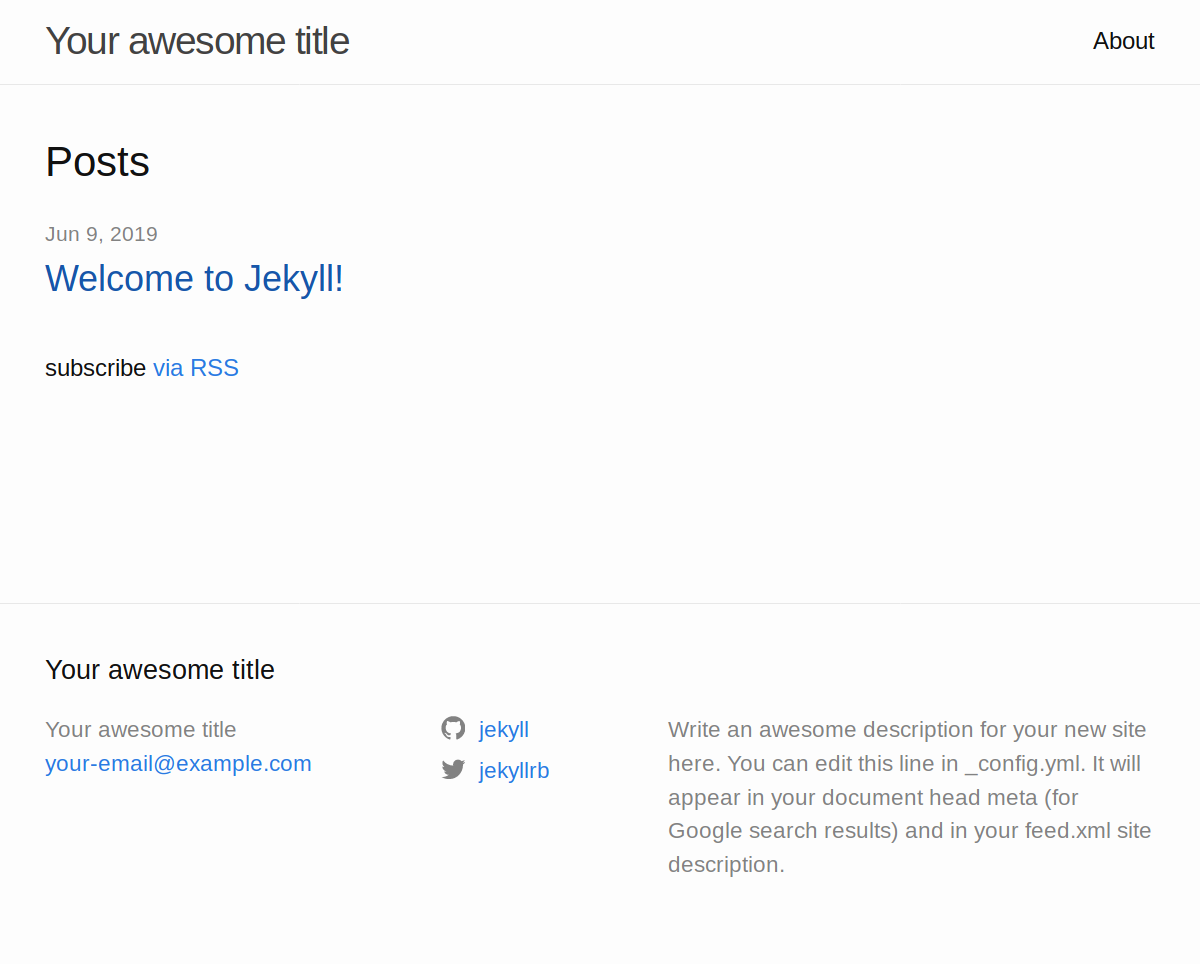
Now this is great, but this looks like a blog, and we’re not trying to make a blog here, we have to perform a few tweaks to get our one-page project website come to life.
Configuring Jekyll
We got our site up and running, which is awesome, you can make blog posts! But we’re not looking for that. Instead, we want to create a one-page site for our project.
To achieve this, we’re going to open up _config.yml and make a few changes, as well as changing the main theme. We will want to apply the Cayman theme for our site. Here’s the configuration file:
title: Your awesome title |
We will want to change these variables, more importantly, the baseurl. For GitHub projects, your baseurl will be your repository name. If you change your repository name in the future, then remember to edit this line! Let’s make our changes:
title: Chuck Says. |
That was fast, right? But before we move on, it’s time for us to update the layout in our index.md file. You see, Jekyll works using a pre-defined layout that wraps the page in it, these are defined in the directory _layouts in a HTML file, luckily they are added automatically in the github-pages gem, so you won’t have to create one.
Let’s add the default layout to our index.md page using Font Matter. Let’s open it up and change the format; After that, we can finally fill out our page!
--- |
Deploying our site with GitHub Pages
After you have pushed your /docs folder to your repository with all of the changes we previously made, let’s configure GitHub so it can deploy our site. Fortunately, this is very easy.
- In your GitHub repository, click the Settings tab.
- Scroll down until you see GitHub Pages.
- Click the button under Source and select master branch /docs folder
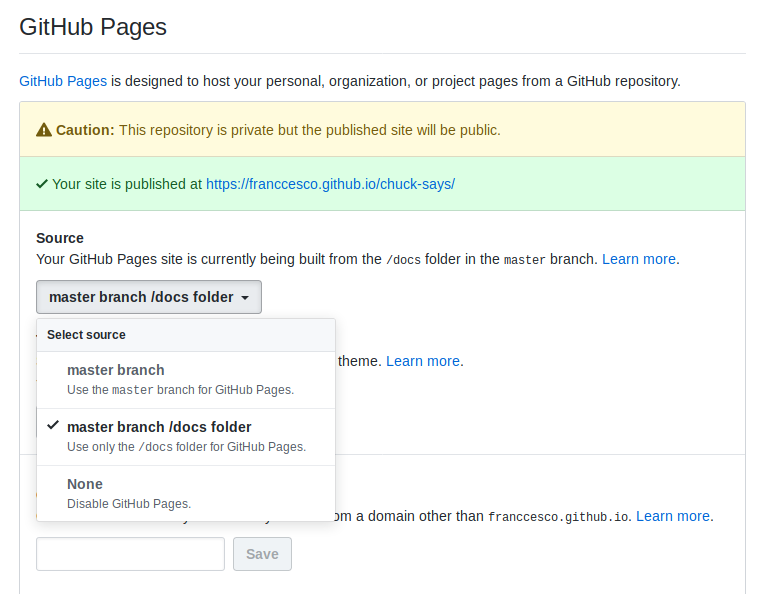
After that, you should see Your site is published at https://yourusername.github.io/your-project/, it may take a few seconds to appear.
After you have applied the settings, you should be able to check out your new project site at the URL that GitHub provides you.
Conclusion
Jekyll is a very powerful site generator. You can use it to make a blog, a CV online, your project’s sites, and it doesn’t cost a dime to host it at GitHub pages! Here’s an example of how it looks: https://franccesco.github.io/chuck-says/
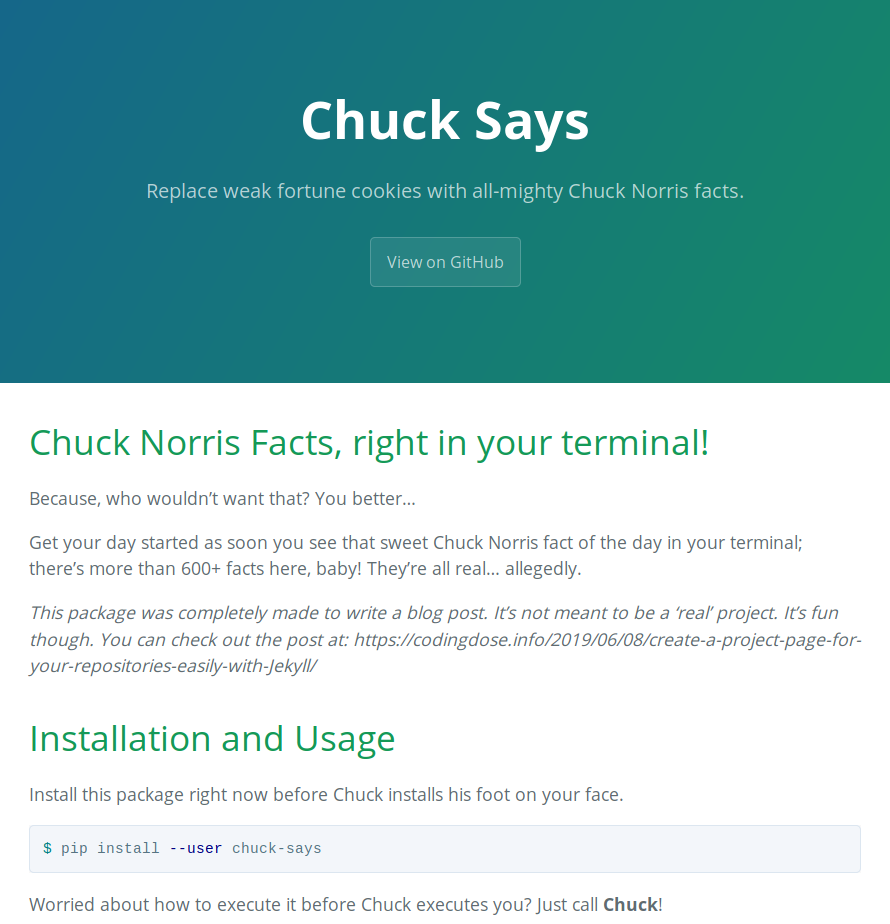
Pretty neat, right? You can check the example repository by clicking on the image. Also, if you’re new and you would like to make your first contribution in the GitHub community, check out the issues pages.
I think I’ll make a post on how to create a blog using Jekyll, but we will also check out other static sites generators too. I hope you really liked the post, if you have any question then don’t hesitate to let me know.